

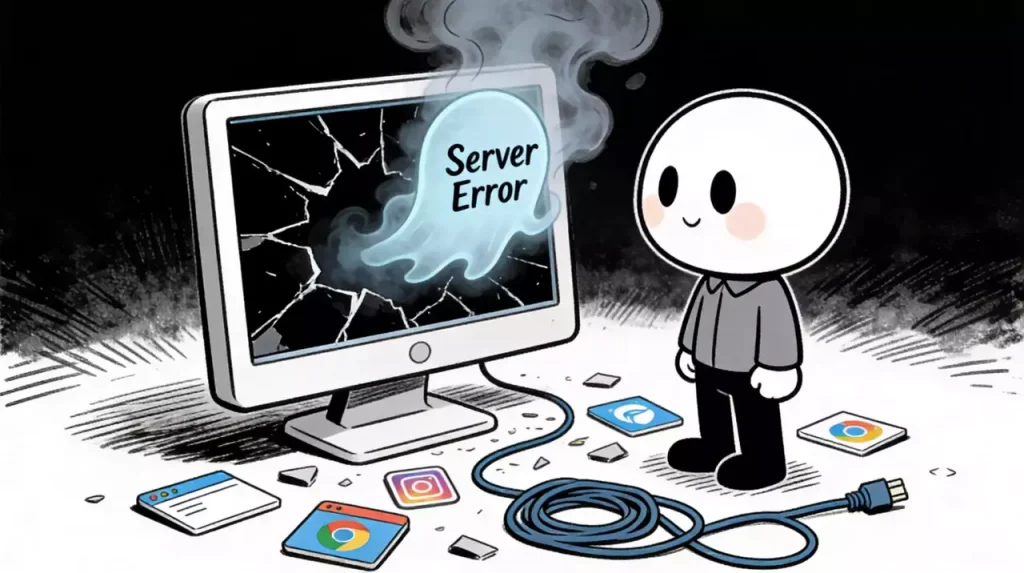
It happens without warning. You are in the middle of a workflow—scraping data, managing ads, or simply navigating a dashboard—and the screen freezes. The interface disappears, replaced by a stark, unhelpful message: “We had a server error…”
Unlike specific HTTP status codes (like the infamous 404 Not Found or 503 Service Unavailable), this generic error text is particularly frustrating because it provides zero context. It doesn’t tell you if the website is down, if your internet has cut out, or if your access has been revoked. It leaves users stranded, often leading to wasted time refreshing the page hoping for a miracle.
However, this error is rarely random. It is usually the symptom of a specific breakdown in the communication chain between your client (browser) and the host server. By understanding the mechanics behind this interruption, you can move from blindly refreshing to actively fixing the problem.
This analysis breaks down the technical reasons behind these vague alerts and outlines a systematic approach to restoring your connection.
The Anatomy of a Generic Connection Failure
To fix the error, we first need to understand why it is displayed so vaguely. When a browser sends a request to a website, it expects a specific response code. If the connection is severed abruptly, or if the server returns a response that the browser cannot interpret, the default fallback is often a generic “server error” notification.
While it is easy to assume the website itself has crashed, statistics suggest that a significant portion of these errors are client-side or network-path issues. The problem usually lies in one of three areas:
- Browser Conflicts: Corrupted local data or aggressive extensions preventing the script from loading.
- DNS & Network Routing: The roadmap your computer uses to find the server is outdated or blocked.
- Security Filtering: The most common cause for power users. The server’s firewall has flagged your IP address as suspicious and terminated the connection to protect itself
Level 1: Immediate Remedial Actions
Before reconfiguring your network settings, you should eliminate the most common, superficial causes. These steps resolve the majority of errors caused by local browser glitches.
The “Hard” Refresh
A standard refresh (clicking the reload button) often just re-displays the cached version of the error page. You need to force the browser to ignore its cache and fetch fresh data from the server.
- Windows: Hold
Ctrland pressF5. - Mac: Hold
CmdandShiftand pressR.
Clearing Corrupted Cache
Websites update their code frequently. If your browser is holding onto an obsolete version of a JavaScript file while the server is trying to serve a new one, a conflict occurs. This version mismatch often triggers the “we had a server error” alert because the browser essentially “chokes” on the new data.
- Navigate to your browser’s Settings > Privacy and Security.
- Select Clear Browsing Data.
- Ensure “Cached images and files” is checked. Clearing cookies is also recommended, though this will log you out of active sessions.
Extension Interference Check
Modern ad-blockers and privacy extensions work by blocking scripts they deem intrusive. Occasionally, they generate false positives, blocking essential functional scripts required for the website to load.
- Open the affected URL in Incognito/Private Mode.
- If the site loads correctly in Incognito, one of your extensions is the culprit. Disable them one by one to identify the source.
Level 2: Network Infrastructure and Stability
If basic browser troubleshooting fails, the issue is likely deeper in the network stack. This is where the distinction between a casual user and a professional setup becomes apparent.
DNS Flushing and Renewal
Your computer maintains a “phonebook” of IP addresses known as the DNS cache. If a website moves to a new server but your computer keeps dialing the old IP, the connection will time out or fail. Flushing the DNS forces your computer to update this phonebook.
- Windows: Open Command Prompt and run
ipconfig /flushdns. - Mac: Open Terminal and run
sudo dscacheutil -flushcache; sudo killall -HUP mDNSResponder.
The Impact of IP Reputation
This is the most overlooked cause of server errors. Websites utilize complex firewalls (like Cloudflare or Akamai) to filter traffic. These firewalls assign a “reputation score” to every IP address visiting the site.
If you are using a public Wi-Fi network, a shared VPN, or a crowded data center IP, your “reputation score” might be low because other users on that same network have behaved badly. When a firewall sees a request from a low-reputation IP, it often terminates the connection silently. The browser, receiving no data, interprets this as a server error.
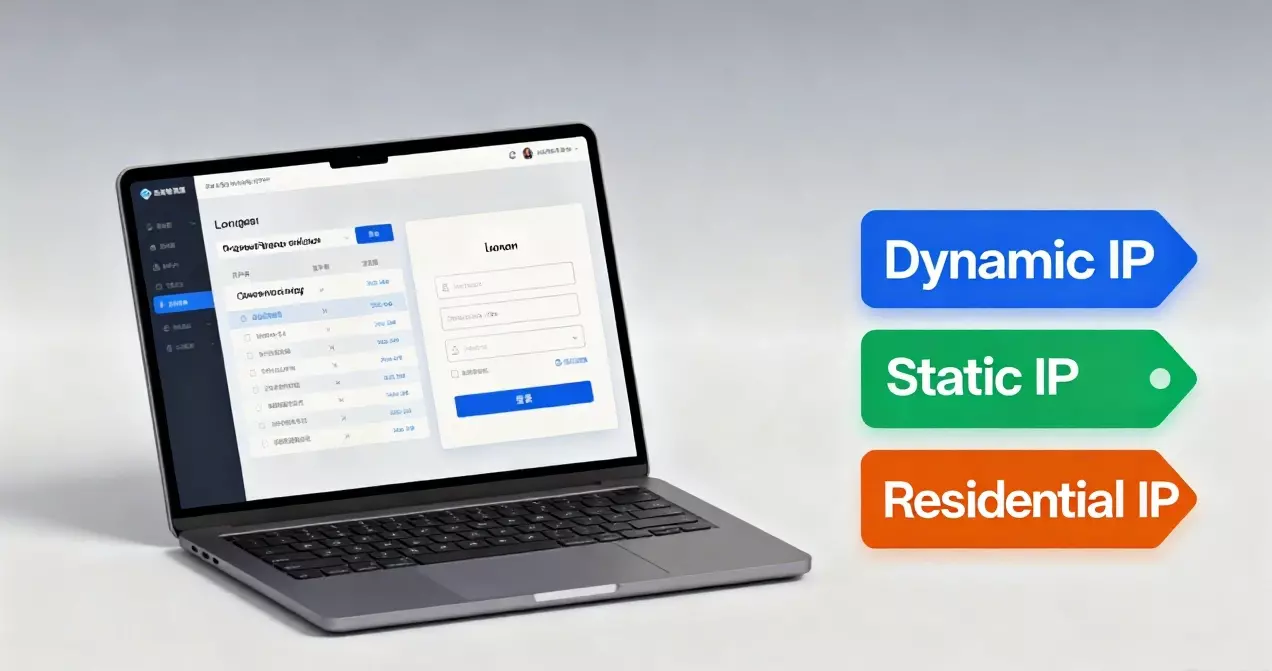
For users relying on consistent uptime, simply restarting the router isn’t enough. The solution involves upgrading the quality of the entry point. Utilizing a high-quality residential proxy service can solve this by routing your traffic through clean, trusted IP addresses that appear as standard residential connections, thereby bypassing the reputation filters that trigger these errors.
Level 3: Architecture for Heavy Usage
Professionals running automated tasks, managing multiple social media accounts, or conducting high-volume market research encounter server errors for different reasons than the average user. Here, the error is often a result of Rate Limiting or Geo-Blocking.
Bypassing Location-Based Restrictions
Servers are physically located in specific regions. If you are in Europe trying to access a server in North America, the physical distance creates latency. If this latency exceeds the server’s timeout threshold, the connection drops. Furthermore, many sites explicitly block traffic from outside their operating regions.
Simply masking your location isn’t sufficient if the connection is unstable. To effectively access your dashboard securely or gather data from foreign markets, you need a network solution that provides “Sticky Sessions.” This ensures that your IP address remains constant for the duration of your task, preventing the security flags that pop up when an IP address rotates too frequently during a single session.
Handling Concurrency
“We had a server error” is a common response when a server is overwhelmed by requests from a single user. If you are opening 50 tabs simultaneously or running a multi-threaded scraper, the server sees this as a potential DDoS attack.
- Solution: Throttle your request speed or distribute your requests across multiple IP addresses to stay under the radar of rate-limiting algorithms.
Why “Server Errors” Are Actually Opportunities
While frustrating, these errors serve as a diagnostic tool. They reveal the limitations of your current setup.
If you see this error frequently, it is a clear signal that your current network configuration is not robust enough for your usage patterns.
- Casual Browsing: The error implies a need for better browser hygiene (clearing cache).
- Business Operations: The error implies a need for better infrastructure. Relying on standard ISP connections or low-tier VPNs for business-critical tasks introduces a single point of failure.
By analyzing when the error occurs—whether it’s during high-traffic times, when accessing specific regions, or after a certain number of requests—you can pinpoint the bottleneck.
Frequently Asked Questions
Q: Is the “We had a server error” message permanent?
A: Rarely. If it is a true server crash, it will be fixed by the site administrators, usually within hours. If it is a client-side issue (like a bad cache or IP ban), it will persist until you take action to fix your local settings or change your IP.
Q: Why does the error happen on my phone but not my computer?
A: This confirms the issue is local to the device, not the website. Your phone might be on a different network (Mobile Data vs. Wi-Fi) or have a different cache. This is a good sign, as it means the website is actually online.
Q: Can a firewall cause this error?
A: Yes. Strict corporate firewalls or aggressive antivirus software can interrupt the “handshake” between your computer and the server. Temporarily pausing your firewall can help diagnose if this is the cause.
Q: Does Incognito mode fix server errors?
A: It doesn’t “fix” them, but it bypasses cache and extensions. If the site works in Incognito, you know the problem is with your browser’s stored data, not the internet connection.
Q: What if I have tried everything and still get the error?
A: If you have cleared the cache, flushed DNS, and ruled out extensions, your IP address has likely been flagged by the website’s security system. This is common if you access the site frequently. In this scenario, rotating your IP address through a professional proxy provider is often the only remaining solution.
Final Thoughts
The digital landscape is becoming increasingly defensive. Websites are deploying stricter security measures every day, and generic error messages are often the collateral damage of these systems.
You don’t have to let a vague error code halt your progress. By maintaining a clean browser environment and understanding the importance of a high-reputation network connection, you can navigate around these obstacles. For those who cannot afford downtime, upgrading your connectivity tools is the logical next step.
Don’t let technical barriers dictate your workflow. Start your optimized journey here and ensure your connection is as professional as your work.