

There is a specific kind of pain known only to gamers who farm Twitch Drops.
You find a streamer, verify the “Drops Enabled” tag, and leave your browser running overnight to earn that limited-time Rust skin or Valorant key. You expect to wake up to a notification saying, “Drop Claimed.”
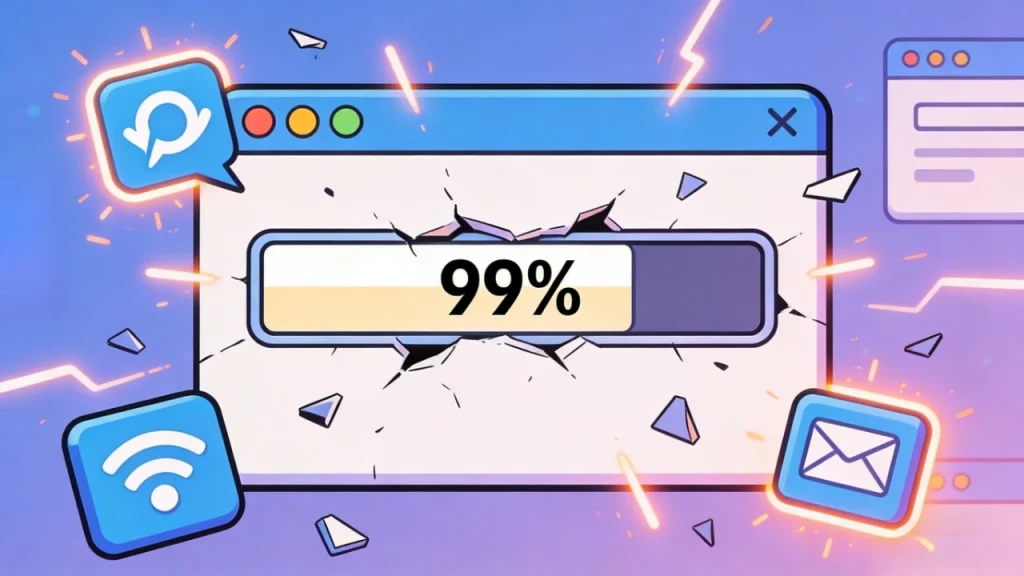
Instead, you are greeted by a progress bar that is frozen at 99%. Or perhaps the bar is full, but the “Claim” button throws a red “Connection Error” every time you click it.
You refresh. You restart. You switch browsers. Nothing works.
Most guides will tell you to “clear your cookies” or “check your internet.” While well-intentioned, this advice is often too shallow to fix the real problem. In reality, Twitch’s tracking system relies on a complex chain of WebSocket connections, browser resource management, and IP reputation checks. If just one link in this chain snaps, your progress halts immediately.
In this deep-dive analysis, we are going to look beyond the basic glitches. We will uncover the 5 hidden technical reasons why your drops aren’t tracking and provide the concrete steps to fix them.
The Core Mechanism: How Tracking Actually Works
To fix the problem, you first need to understand what is breaking.
Twitch Drops do not work by “magic.” When you watch a stream, your browser sends a digital “heartbeat” signal to Twitch’s servers roughly every minute. This signal contains two critical pieces of data:
- User Status: Are you Online, Away, or Idle?
- Viewability: Is the video player actually rendering frames?
If the server stops receiving this heartbeat for even a few minutes, it assumes you have left the computer. It stops the timer immediately to prevent “view botting.”
Most of the “Stuck at 99%” issues are caused by your browser accidentally killing this heartbeat signal to save power or bandwidth.
Reason #1: The “Mute” Misconception
This is the most common user error, but it is also the most misunderstood. Everyone wants to mute the stream to sleep or work, but how you mute it determines your fate.
The Mistake: If you mute the Video Player (clicking the speaker icon in the Twitch video frame) and then switch to a different tab, modern browsers like Chrome and Edge will attempt to optimize resources. The browser logic is: “The user can’t see the video, and they can’t hear the video. Therefore, this tab is useless.” Consequently, the browser stops rendering the video. The heartbeat stops. Your drop progress dies.
The Solution: You must trick the browser into thinking you are still engaged.
- Do NOT mute the video player. Leave the volume slider at 1% or higher.
- DO mute the Browser Tab. Right-click the tab at the very top of your browser window and select “Mute Site”.
By doing this, the video player continues to output audio data (satisfying the browser’s activity check), but your speakers remain silent. It is a simple workaround that ensures 100% uptime.
Reason #2: The Browser “Sleep” Mode (Resource Saver)
In an effort to save battery life on laptops, Google Chrome and Microsoft Edge have introduced aggressive performance features.
The Culprit: A feature known as Energy Saver (or Efficiency Mode) is designed to throttle background tabs. If you have the Twitch stream open in a background tab while you play a game in the foreground, the browser might restrict the stream’s access to the CPU. To Twitch, this looks exactly like a network disconnect. Your status indicator (the little dot near your avatar) turns from Green (Online) to Yellow (Away), and drop tracking pauses.
The Fix: You need to whitelist Twitch or disable this feature while farming.
- In Chrome: Go to Settings > Performance.
- Action: Toggle “Energy Saver” to Off, or add
twitch.tvto the “Always keep these sites active” list. - Result: Your browser will now prioritize the Twitch stream, ensuring the heartbeat signal is sent consistently, even if the window is buried under other apps.
Reason #3: The “Sequential” Bottleneck
Many players encounter a situation where they watched for 4 hours but only received the first 1-hour reward. They feel cheated out of the remaining 3 hours.
This is not a bug; it is a Rule. Most modern drop campaigns are “Sequential.” This means Reward B is locked until Reward A is physically claimed.
- Scenario: You sleep for 8 hours.
- Result: The stream runs for 8 hours. You earn the 1-hour drop. The remaining 7 hours of watch time are discarded because you weren’t there to click “Claim.”
The Workaround: If you cannot be at your computer, you need to use a browser extension that handles this interaction for you. Tools like Automatic Drops & Twitch Channel Points can detect when a claim is ready and click the button automatically. Note: While generally safe, always use extensions with caution. The safest method remains setting a phone alarm to check your inventory manually.
Reason #4: The “Bad IP” Block (The Hidden Shadowban)
If you have tried every browser fix listed above—you are using a fresh browser, you haven’t muted the player, and you are actively watching—but the progress bar remains at 0%, you are likely facing a network-level ban.
This is the issue that frustrates users the most because there is no error message. Twitch simply silently ignores your watch time.
Why does this happen? Twitch is under immense pressure from advertisers to prove that “real humans” are watching ads. As a result, they have blacklisted millions of IP addresses associated with:
- Data Center VPNs: Most cheap VPNs route traffic through data centers (like AWS or DigitalOcean). Twitch knows these IPs are not residential homes. They assume anyone connecting from a data center is a bot.
- Shared Public Networks: If you are watching from a university dorm or a large office, hundreds of users might be sharing one public IP address. To Twitch’s anti-abuse algorithms, this volume of traffic looks like a “click farm,” so they throttle drops for everyone on that network.
The Ultimate Solution: To bypass an IP reputation block, you must appear as a unique, residential user. This is where dedicated residential proxies (like IPhalo) act as the ultimate solution.
Unlike a VPN that shares one “dirty” IP among thousands of users, a residential proxy assigns you a pristine IP address from a real ISP (Internet Service Provider) network.
- The Difference: To Twitch, your connection looks identical to a standard household in New York, London, or Tokyo.
- The Outcome: The “Shadowban” is lifted instantly. Because the IP has a high trust score, the drop tracking script is allowed to run without restriction.
Reason #5: The “OAuth” Handshake Failure
Sometimes, the issue isn’t tracking—it’s delivery. You click “Claim,” but the item never appears in your game inventory (e.g., in Overwatch 2 or Hogwarts Legacy).
This usually happens because the secure “handshake” (OAuth Token) between your Twitch account and the game publisher’s account has expired. This frequently occurs after you change a password or after a game receives a major patch.
The “Nuclear” Re-Link Method: Simply clicking “Disconnect” on Twitch is often not enough. You must perform a full reset:
- Disconnect on Twitch: Go to Settings > Connections and remove the game account.
- Disconnect on the Publisher Site: Go to the Battle.net/Steam/Epic account management page and remove the Twitch connection there.
- Clear Cache: Clear your browser’s cookies.
- Re-Link: Start the connection process from scratch.
This forces the generation of a brand-new security token, which usually resolves the delivery failure immediately.
Conclusion
Twitch Drops are a fantastic way to earn free content, but the system is technically fragile. It relies on a perfect synchronization of browser activity, user interaction, and network trust.
Don’t let a “Stuck at 99%” glitch ruin your event. Start by checking your browser’s energy settings and ensuring you are muting the tab, not the player. However, if problems persist across different browsers and devices, the culprit is almost certainly your network reputation. Upgrading to a clean, trusted connection is often the only way to ensure your time is respected and your rewards are delivered.