

You know the feeling. The popcorn is ready, you are comfortable on the couch, and you hit “Play.” But instead of the movie starting, you get a spinning red circle, followed by a black screen and a cryptic message: “Netflix has encountered an error. Retrying in… (Error Code: NW-2-5).”
You click “Try Again.” Nothing happens. You restart the app. Same error.
Most users panic and assume their internet is broken. But check your phone—Instagram loads fine, right? So why is Netflix dead?
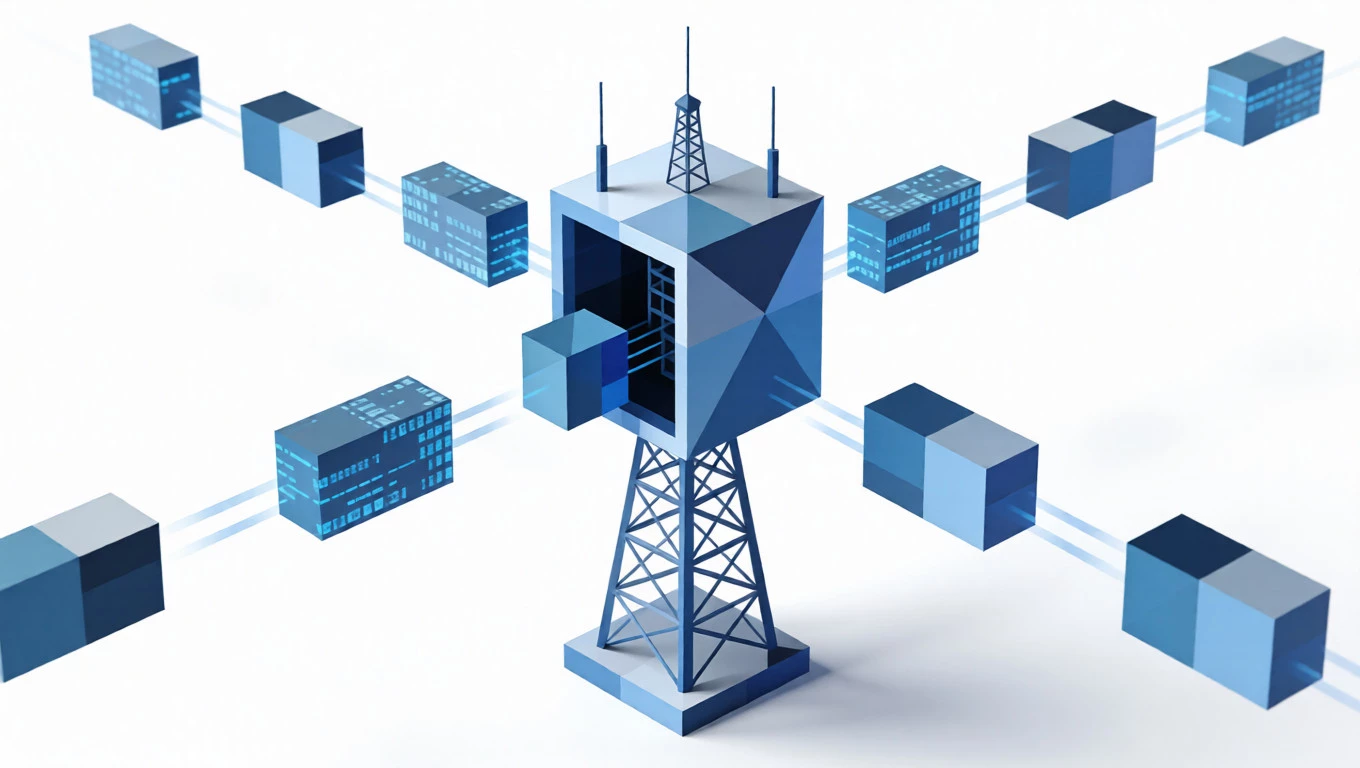
Error Code NW-2-5 is a specific beast. It means your device can reach the internet, but it cannot establish a handshake with the Netflix servers. This block usually happens somewhere in the middle—at your router, your DNS settings, or your IP address reputation level.
Stop hitting the “Retry” button. It won’t work. Here is the technical breakdown of how to actually fix the connection.

Understanding the Error (It’s Not Just You)
To fix the problem, you have to speak the device’s language. The official Netflix Help Center defines NW-2-5 as a network connectivity issue that prevents your device from reaching the Netflix service.
Think of it like a blocked phone call. You have a signal, but the number you are dialing (Netflix) is rejecting the connection. This usually happens because:
- DNS Failure: Your network doesn’t know the address of the Netflix server.
- Streaming Throttling: Your ISP is deliberately slowing down video traffic.
- IP Flagging: Your specific IP address has been marked as “suspicious” and blocked by Netflix’s security gate.
Fix #1: The “Hard Reset” (Not Just Sleep Mode)
Turning your TV off with the remote does nothing. It just puts the screen to sleep. The network card inside is still running the same bugged session.
The Correct Way:
- Unplug your TV, Xbox, or PlayStation from the wall socket.
- Press and hold the physical power button on the device for 5 seconds. (This drains the electricity from the internal capacitors).
- Wait a full minute.
- Plug it back in.
This forces the network card to “forget” the old broken connection and request a fresh IP handshake.
Fix #2: Bypass the “Default” DNS
This is the most effective technical fix. Your Internet Service Provider (ISP) automatically assigns you a “DNS Server.” These are often slow and can struggle to resolve Netflix’s massive server list.
Switching to a Public DNS is like taking a highway instead of a dirt road.
How to do it (Smart TV / Console):
- Go to Settings > Network > Set Up Connection.
- Choose “Custom” or “Manual” setup.
- Leave IP Settings on “Automatic.”
- For DNS Settings, enter:
- PrimaryDNS:
8.8.8.8(Google) - SecondaryDNS:
8.8.4.4
- PrimaryDNS:
- Save and restart Netflix.
Note: You can also try Cloudflare’s DNS (1.1.1.1) if Google’s doesn’t work.
Fix #3: Test the Wi-Fi Strength (Signal Quality)
Error NW-2-5 often triggers if the “Packet Loss” is too high. Even if your internet is fast, an unstable signal will cause the Netflix handshake to fail.
The Test: If you are using Wi-Fi, temporarily connect your device to the router using an Ethernet Cable.
- If it works with the cable: Your Wi-Fi module or router placement is the issue.
- If it still fails with the cable: The issue is upstream (your ISP or IP address).
Fix #4: Eliminate “Bad IP” Blocks
Here is the hidden cause that standard troubleshooting misses. Sometimes, your internet is fine, but Netflix has blocked your IP Address.
Why?
- Public Networks: If you are at a hotel, school, or dorm, the IP is shared by hundreds of people. Netflix often blocks these IPs to prevent abuse.
- ISP Throttling: Some ISPs downgrade streaming traffic during peak hours.
The Solution: You need a cleaner, more stable connection path. This is where using a clean residential proxy network can be a game-changer for advanced users.
Unlike a standard connection that might be throttled or flagged, a residential proxy routes your traffic through a high-reputation IP address assigned by a legitimate ISP.
- The Result: Netflix sees a “fresh” home user connection. It clears the NW-2-5 error because the “suspicious” flags associated with your old IP are gone. This is particularly useful if your local ISP has poor routing tables to Netflix’s servers.
Fix #5: Check Router “Parental Controls”
Did someone in the house mess with the router settings? Netflix requires specific ports (Port 80 and Port 443) to be open. If your router has aggressive “Parental Controls” or “Firewall” settings enabled, it might mistakenly classify Netflix traffic as “unknown” and block it.
Action: Log into your router (usually 192.168.1.1 or 192.168.0.1), find the Security tab, and temporarily set the Firewall to “Low” or disable Parental Controls to test the connection.
Conclusion
The NW-2-5 error is rarely a sign that Netflix is down. It is almost always a sign that your local setup is failing to speak clearly to the server.
Start with a hard power cycle. If that fails, change your DNS. But if you are constantly plagued by connection drops and blocks, the issue likely lies with your IP quality or ISP routing. Optimizing your network environment is the only way to ensure that when you hit “Play,” the movie actually starts.
Stop fighting with your router and stabilize your streaming connection with IPhalo.